
There are two ways to enable surveys/polls to be taken from the kiosks. Both options require linking out to an external survey site like Survey Monkey, Google Forms, Typeform, etc.
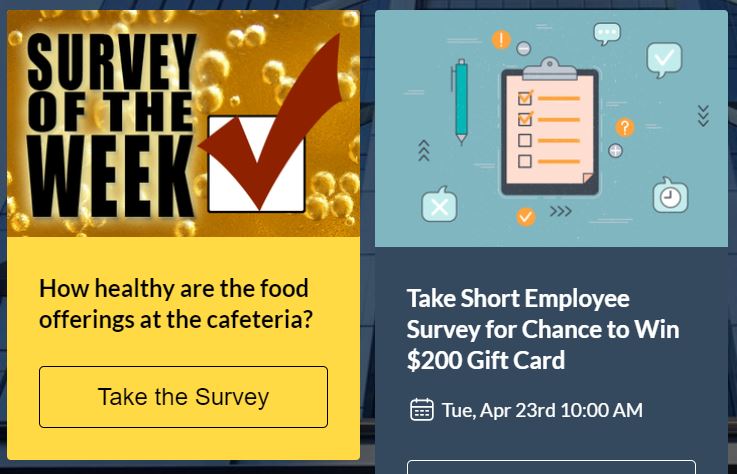
Survey/Poll Hoot - Here's an example of a survey hoot for you to check out! Below is a walk thru on how to create a survey or poll as a post:
1. When creating a hoot, add a title & description about why they should take the survey. Tip - Try a mini giveaway.
2. Add a nice image to make your hoot stand out
3. Add a Button to your hoot - You can link it to the actual survey and add a call to action for your post like "Take Survey", "Leave Feedback", etc. A button will make the call to action stick out when users are viewing the post on a kiosk and automatically open up the survey when the user taps on it.
PRO TIP - If you are using Survey Monkey, we recommend enabling Multiple Responses in Survey Monkey so the next person can immediately take the survey without waiting for the session to end first.
Survey App - For a Permanent Survey App, you can follow the instructions in this article and create a "Web App". The Web App will link directly to your survey.
Other Tips for Adding Surveys on Kiosks
- Keep your questions simple by allowing users to select answers through multiple choice, single-choice, yes/no, etc.. Your surveys will be more effective if you try to minimize the amount of text respondents have to enter.
- Limit the number of questions you use.
- Create a routine of using surveys and polls.
- Incentivize your respondents by letting them know why their input is valuable.
Comments
0 comments
Please sign in to leave a comment.